Thursday, November 29, 2012

Day 2 of AU

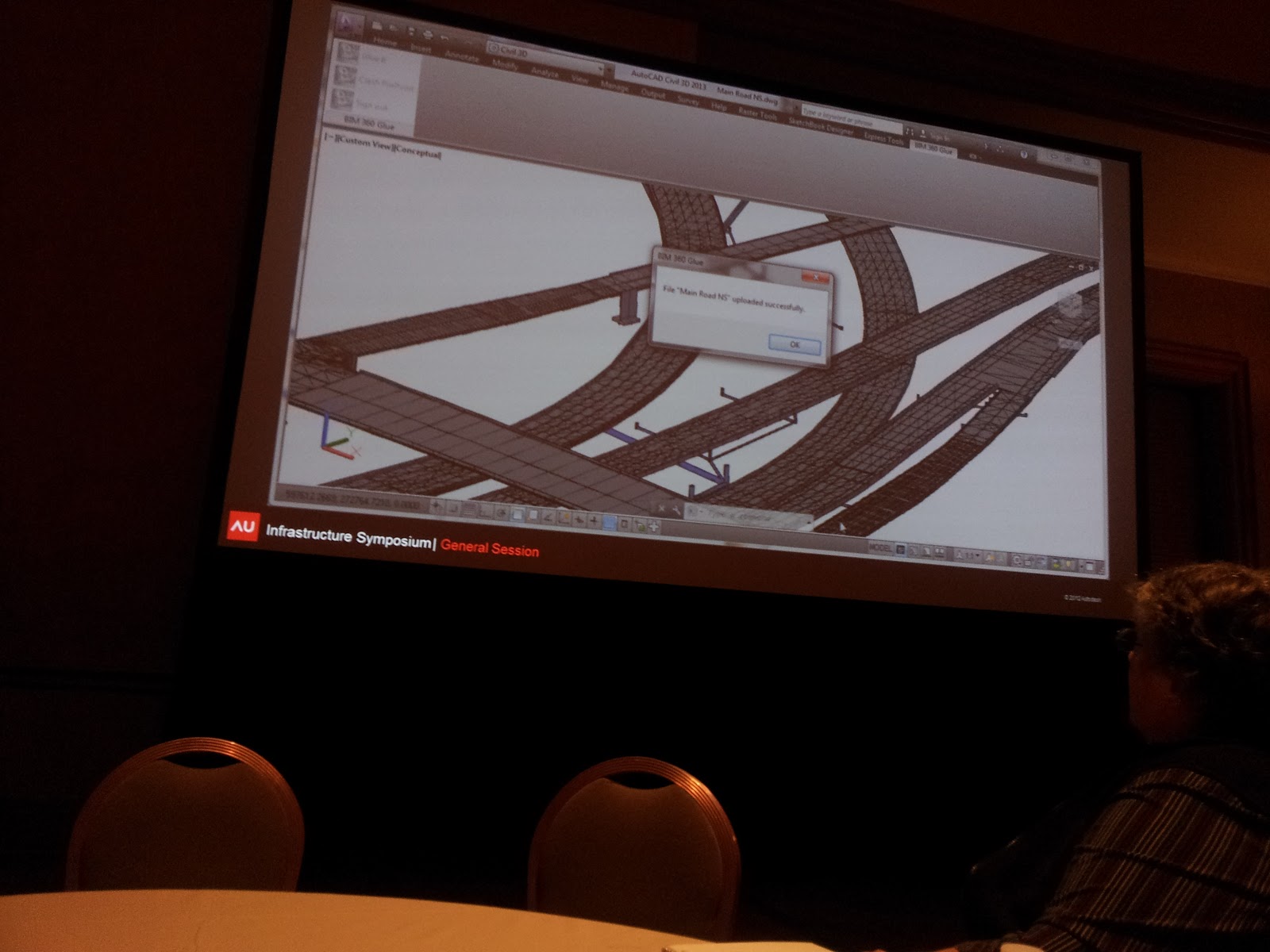
Hi everyone. Well today the Infrastructure symposium classes started. The first class was a general class splashing over all the new technology and innovation in visualization, collaboration that was coming out. They introduce a few new software such as Pictometry and Autodesk Fusion 306. Both software was pretty amazing. There were a few others that dealt with imagery. The second class was over land development dealing with small and large scale projects.. Most of the design examples were in Vancouver, Canada.  The third class if I remember right, was over networking. Anyways, here are a few pictures I took that day. Oh yeah on this I ran into the famous Dana Probert and James Wedding. In addition, I also ran into Ian, Kati and Juan that I follow on tweeter. My last class was freshman orientation. There must have been 1,000 members in this a large room. Lynn Allen gave the welcoming speech to us. It was an awesome sight to see that many newcomers. At each table they assign a mentor to provide guidance and helpful types. Luckily for me, I had Rick Ellis at my table. If you don't know who Rick Ellis is, he is the author of A Practical Guide to AutoCAD Civil 3D 2013. This is a great book to have. I have was lucky enough to get my hands on a copy where at AU. Anyways, later the evening I had a chance to hangout with Dana and James from Autodesk. Two people I really look up to. Anyways, I ended up get the first golden "I'm Digging This" shovel that Dana was handing out to those that could find her that night.  Overall the day was pretty amazing.


Monday, November 26, 2012

Day One of AU

The first day at AU is down in the books. So I arrived today in Vegas sometime around 1 pm coming from Dallas. I checked into Mandalay Bay hotel and went straight to my room. I looked outside my window to check out the strip. I unpacked my clothes and headed downstairs to find the AU convention center and also walked around the hotel and ruin in the sites. I then headed back to my room and chilled and relaxed. At 4 o'clock I headed back to the convention center for registration. While I was there I ran into Scott Sheppard from Autodesk Labs. In addition, I ran into one of or resellers from Imaginit. Within 15 minutes I witness several hundred AU members get registered. The rest of the evening I mingled with other AU members from all parts of the US. Anyways, I have attached a few pictures from today's events.


Thursday, October 25, 2012

Civil 3D 2013 Part Builder Bug Work Around

  Good morning everyone. I hope everyone is having a great week. This morning I would like to go over a work around for Civil 3D 2013 part builder bug.  I will first begin by saying that is my work around for this problem. There may be other methods of solving this issue like making edits in the xml file or just using your own block to display every storm and sewer structure within the part style. It’s really up to you and what best fits you company workflow.
So as many of you my already know, the Part Building bug does not allow you change the Parameter Configuration wall thickness (Wth) from Constant to List so you can add other wall thickness such as 3”, 5” or 8”. This can be a serious problem because the structures will not display the correct size on your plan. Below, I will guide you step by step on  fixing this problem quickly and easily. Before you begin please make a backup copy of your Pipes Catalog folder.
First go into part builder. Lets first work on the Rectangular Junction Structure NF. I typically use this structure for curb inlets, grate inlets, wye inlets and junctions boxes. Expand the Junction Structure without Frames and select Rectangular Junction Structure NF. Then click the Modified Part Sizes button. Inside part builder expand Size Parameters. As you can see everything looks normal.


Now right click on the Size Parameters and select Edit Configuration. Under the Wth (Wall thickness) column click on the Constant item. A small pull down will appear. Change to List and click Ok.

Now look at your Size Parameters list. As you can see the WALL_THICKNESS parameter has been added. You can add any wall thickness you want, but it will not recognize the value. This is the bug that Autodesk is currently working on. Now lets work on our work around. Right click on the WALL_THICKNESS parameter and select delete.


Go back into you Edit Part Size dialog box by right clicking on Size Parameters and selecting Edit Values. Under wall thickness (WTh) change the default wall thickness from 2 to 6. Our ultimate goal is to have the correct outer boundary dimensions so our structure display correctly. For example a 6’ junction box per our city standard details have 8” walls. Since we want to use 6” wall thickness as our constant, I will make up the other 4 inches (2” for both sides of the wall) by adding it to my Inner structure width (SIW) and Inner structure length (SIL). (Use a wall thickness that is most common for all of your structures). Click on the default value for the Inner structure width (SIW) and then select the NEW icon up top. Now add your new value here such as 76 inches for our 6’ junction box. While we are here, go ahead and add any other additional sizes that you will need for curb inlets, grate inlets, wye inlets, or junctions boxes. Click Ok when done. Next go into the Inner structure length (SIL) and add all your new values. Click OK when done.


Now click the validate icon up top ( Traffic Sign icon) then the Save icon. Close part builder. Now go back into your parts list structure and update your structure inner widths and lengths with the new values that we added. As you can see my new values are available for me to use.


Anyways, I hope this work around will help you. Thank you for stopping by and feel free to comment or make suggestions. Have a great week.

Thursday, September 20, 2012

Re-release of Autodesk Project Basejump Technology Preview


Good evening everyone. As some of you may already know, Autodesk Labs has brought back Project Basejump. The Autodesk Gods have answered my prayers lol. Anyways, I tested the application in May when it was first released and I just fell in love with it. I was amazed how user friendly it is to use. I actually liked it better than the Google extension in, but that’s just my opinion. Now I can get the survey and planning department off my back....jk. So tonight I installed the software and ran a quick test to see if there were any bugs in it’s first run. See video below. Now, lets see how long it takes Autodesk to turn this application from the beta testing phase to an Autodesk subscription download item.

For those that have never heard or see Project Basejump, this technology preview application can be downloaded for free at the Autodesk Labs website. Autodesk Project Basejump provides a direct link to Microsoft Bing Map server (WMS) and is also an FDO provider for 2013 software products such as Civil 3D and Map 3D. Project Basejump technology preview includes aerials, road labels, and other information within Civil 3D and Map 3D. I would encourage everyone to test this application and see if it would benefit you in your daily design. Thanks for stopping bye. Have a great weekend everyone.
First Quick Test.


Thursday, August 16, 2012

August Updates

Good morning everyone. Sorry I have not posted in a long while. Here are a few updates that Autodesk has posted in the last few weeks. I will try to do another post tonight with tips and trick, and more new hidden features with C3D 2013.
  • Two days ago the Productivity Tools for AutoCAD Civil 3D 2013 was posted on the subscription center. The productivity tools include: Borehole Utility for AutoCAD, Cartogramma Utility for AutoCAD, Corridor Solids Extraction, C3D 2013 Extension for Civil View, 12D Data Extension for C3D 2013, Rural and Urban Road Subassemblies, PISTE Translator for C3D 2013, Clip/ISTRAM Translator for C3D and I have been told the Bridge Modeler was also included.
  • Two weeks ago Autodesk released Service Pack 2.1. for C3D 2012. This service focused on Hydroflow Storm Sewer, Hydroflow Express, Catchments, Corridor Volumes, Cross Sections problems and much more. Click on link below for download and more information. C3D 2012 SERVICE PACK 2.1
  • In addition, another hot fix was release to fix the problems with data shortcuts.Click on link for further information and download.
  • C3D 2012 DATA SHORTCUT HOTFIX
  • Autodesk also release another hot fix for C3D 2013 to fix the problem with survey figures property dialog and opening a C3D in Navisworks Manage 2013. Click on link for further information and download. C3D 2013 HOT FIX

Wednesday, May 23, 2012

C3D 2013 Hidden New Features

Good evening everyone. I hope everyone’s week is going great. Well the last few week has been extremely busy for me but now I finally got some breathing room to post another blog. I hope everyone has had the opportunity to test run the new C32 2013. I am sure you have heard all about all the big new features that has been incorporated into C3D 2013 but tonight I would like to share with you some small hidden jewels that you may not know about yet.
The first hidden feature can be found within: pipe, structure, alignments, profile, parcels ,surface, fitting, appurtenance, corridor, intersection and section label style composer. Go to your Layout tab and select the Reference Text options from the Create component pull down. 

The Select Type dialog will open. As you can see from the image below the Survey Figure options has been added. Select Survey Figure and click OK.

This will bring you back to the Text Component Editor. Select the text box next to the Content line.The will send you to the Text Component Editor-Content dialog box. In the Properties Tab select the pull down. Notice you have 4 properties label options for your survey figure. (Name, Description, Survey Figure-Figure Style,Site) This could benefit those that want to label survey figures..

Hit Cancel, within the Text Component Editor select the Reference Text options under the Create component pull down. Click on the content line editor. The Text Component Editor-Content dialog box will open. In the Properties Tab open the pull down for all the properties options. As you can see, several new properties have been added. You now have roughly 45 different properties that you can select. In C3D 2012 you have 16 different properties attributes.

Another hidden feature change is the properties filters. For structure label styles, this is what you have for structure type filters in C3 2012.


But in C3D 2013, this is what you have.


Anyone’s it seems every time Autodesk adds new features some current ones are removed for some reason. Anyways I hope this information is hopeful to you. Thank you for stopping by. Feel free to make comments or vote cool or interesting just underneath this post.
Sunday, May 6, 2012

C3D 2011 CROP SURFACE

The crop surface feature will come in handy when you have a small project site and you are using USGS contours or aerial contour that covers hundreds of acres. The crop surface feature will allow you to cut area of surface that you need for your project without affect the original surface or source surface. I’m sure some of you are asking why not use boundary and data reference the surface out. Well to answer that question, as far as I know you can not make revision or changes to the data reference surface once you insert it into your drawing. With the crop surface feature you will be able to add points, breaklines, contours…etc. Anyways, this feature would have definitely helped me in my subdivision design I was working on which had 500 acre surface. I have provided a short video below  on how to use the crop surface feature. Remember if you make changes to the original surface and want those changes to reflect to the copied surface, simply select rebuild snapshot then rebuild surface on the copied surface.
.